
Your detailed Rhythm guide
From your first event to shared plans: what each tool does, how to use it and what to check when it is unavailable.
Beta testers: update first. Install the newest version available to you on Google Play before testing. Everyone testing shared calendars and “Arrange a meeting” should use the updated app. A submitted release may still be awaiting Google review; check the version installed on each phone.
1. Get started
Rhythm has five main tabs: Today, Calendar, Assistant, Tasks and Settings. You can create local Rhythm events and tasks without enabling cloud sync. Online sharing, cloud synchronization and live travel estimates need an internet connection.
- Open Settings → Language and choose your language.
- In Calendars, choose which calendars are visible and the default calendar for new events. Personal, Work and Family are Rhythm calendars; calendars already on your phone are listed separately.
- Set your working hours and first day of the week in Calendar and working day.
- Check your default reminder in Schedule and reminders. Allow Android notifications and, when requested, exact alarms.
- Today → Quick event entry opens the short form. The bottom-right + Add event in Today/Calendar opens the full form; + Add task opens the task form. The next event can be tomorrow: check its displayed date.
For a new timed event or task on today’s date, the suggested start is the next whole hour, even at exactly 10:00 → 11:00. Other dates use your working-day start, initially 08:00. Review and change it before saving; untimed tasks remain untimed.
Android Back closes an open tool or form first. From a main tab, Back exits the app. After returning from a locked screen, Rhythm opens the Calendar at today's date.
2. Today: understand your day at a glance
The first card separates the current or next event, all-day information and what comes next. Past timed events are not meant to be presented as your current activity. Use the arrows to view another day.
Free slots and conflict checks use calendars visible and available to Rhythm. If shared data is still loading or unavailable, do not treat a partial view as proof that you are free.
Today → Quick event entry opens the short form. The bottom-right + Add event in Today/Calendar opens the full form; + Add task opens the task form. The next event can be tomorrow: check its displayed date.
Use the pencil to edit a saved event or task; touching the remaining card area does not open editing. To delete a task, open its editor and use the bin left of Discard, then confirm. Read-only items do not gain editing rights.
3. Calendar: Month, Week, Day and Agenda
- Open Calendar and choose your preferred view.
- Use the pencil to edit a saved event or task; touching the remaining card area does not open editing. To delete a task, open its editor and use the bin left of Discard, then confirm. Read-only items do not gain editing rights.
- Tap the month name for the month list or the year for the scrollable year list, from 2000 to 2199.
- Use Day or Agenda when you want a readable list of the day's commitments.
Re-entering Calendar returns to the current month and today's date instead of leaving a previously selected day highlighted. All-day events retain their calendar dates; working hours do not turn them into timed events.
Visible event checklists can be expanded on supported event cards. Ordinary notes remain text, not checkable tasks. See Checklists and documents.
In every Calendar view, use the small filter icon beside Search. Choose All, No category, Work, Personal, Family or your own category. The active filter limits what you see; it does not delete events. Return to All when something seems missing.
Use Show/Hide checklist on event and task cards in Today and Calendar, and on Tasks. Tap a round marker to check a step when editing is allowed. In the checklist input, the New line icon below the microphone inserts the next item after dictation.
4. Quick Add: type, speak, check and save
Today → Quick event entry opens the short form. The bottom-right + Add event in Today/Calendar opens the full form; + Add task opens the task form. The next event can be tomorrow: check its displayed date.
- Type or dictate the event in the title field.
- Check the date, start and end displayed immediately below. Tap any of these to correct them.
- If no duration or time was recognized, check the displayed default rather than assuming it came from your words.
- For an extra alarm, tap Alarm, choose its date and then time. If you do not set it, the current default reminder behavior stays unchanged.
- Tap Save to create the event in your default calendar and show it in Calendar, or Review to open the full event form with the recognized and manually corrected details. Review does not save first.
- Cancel closes the entry without creating an event.
Examples: “Call tomorrow at four pm for 30 minutes”; “Lunch tomorrow at 14:00”; Croatian: “sutra ručak u dva popodne”. Always inspect the transcript and final times.
When an ambiguous early-hour time is recognized, a quick choice such as 03:30 / 15:30 can let you correct AM versus PM without opening the full editor. Speech services sometimes omit “afternoon” or “pm”; Rhythm cannot recover a word missing from the transcript with certainty.
If saving fails, the entry remains available with an error. Correct the issue and retry; do not assume that a failed request created the event.
5. Create and edit a full event
Start with its title, calendar, date and start/end. Choose all-day only for an event defined by calendar dates, or mark the time fixed if schedule tools must not move it.
In Notes and documents, the order is Category → Checklist → Note → Add document. Timeline is the last item in this section when available. Its move/save behavior is unchanged. Hide title in notifications changes reminder text, not what shared-calendar members see.
Contact, location and travel contains your contact, personal note, destination and arrival planning. Preparation, Travel and Recovery use quick durations or hour/minute wheels; each has its own alarm switch. Task estimated duration uses the same picker. Buffers do not move the event itself.
Use the pencil to edit a saved event or task; touching the remaining card area does not open editing. To delete a task, open its editor and use the bin left of Discard, then confirm. Read-only items do not gain editing rights.
For a new timed event or task on today’s date, the suggested start is the next whole hour, even at exactly 10:00 → 11:00. Other dates use your working-day start, initially 08:00. Review and change it before saving; untimed tasks remain untimed.
A green checked indicator beside a section summary means that it contains entered information. It is not a “task completed” status. Tap the section to inspect the contents.
Sharing an event as a calendar file is different from putting it in a shared Rhythm. A copied/exported event is not automatically kept synchronized with its recipient.
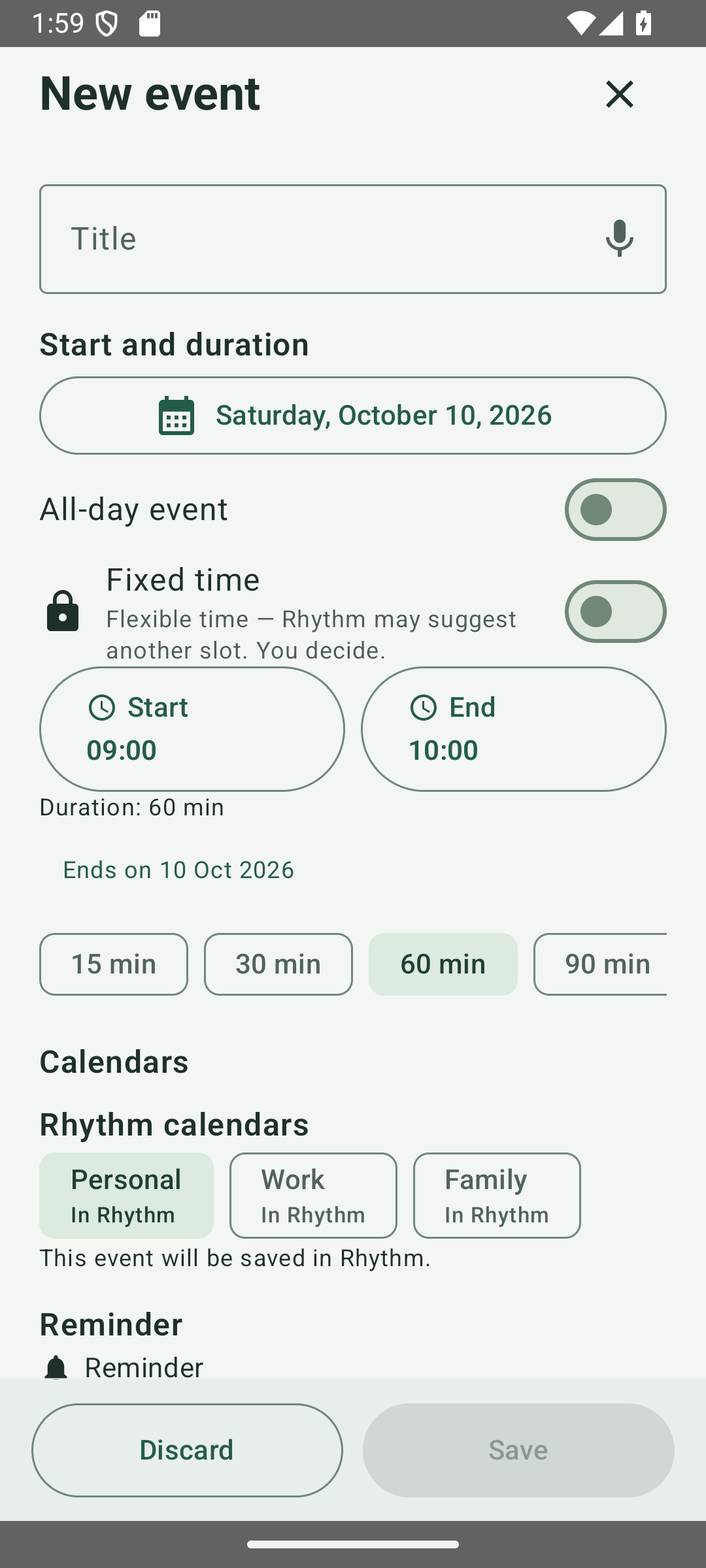
Choose 15, 30, 60, 90 or 120 minutes in the event duration row. Swipe the row to reach more choices. Cancel in the delete confirmation keeps the event unchanged.
6. Repeating events and “Repeat until”
- Choose the repeating rule in the event form.
- If the series needs an end, enable Repeat until.
- Select a final date and time. These mean the last allowed start, not the end of the last event.
- Review the rule and save. If no end is chosen, the series continues according to its repeating rule.
Example: a weekly event starts Monday at 09:00. A cutoff on a Monday at 08:00 excludes that Monday's 09:00 occurrence. A cutoff at 09:00 permits it.
When editing a series or an occurrence, read the stated scope before confirming. Occurrence-specific reminders are retained when the general series reminder changes. If you also enable activity measurement, see Personal duration estimate.
Google/Outlook entries need a writable calendar exposed through Android. Use the pencil for supported single-event changes. For supported recurring entries, choose Only this event or Entire series and check the scope. Existing exceptions and reminders are preserved; this does not add This and following events.
Read-only, unsupported or unsafe provider changes open the source calendar instead. Change the repeat rule there when Rhythm cannot safely edit it. After an uncertain save, inspect the source calendar before retrying; do not create another copy blindly. Connecting calendars never shares them with other Rhythm users.
7. Reminders and additional alarms
Use + under Additional reminders to add multiple personal alarms, even with the primary reminder set to None. Edit dates and times or delete individual alarms. One-time alarms keep their date when an event moves; series may keep the same offset. A silent preview appears 30 minutes before the alarm. Skip this alarm affects only that delivery; swiping the card does not skip it. Future skipped alarms can be re-enabled in the editor. Android controls icons, sound and grouping. Check permissions in Settings → Schedule and reminders → Reminder delivery. No silent inexact fallback is used. Reopen Rhythm after force-stop and unlock after reboot. Personal alarms are included in the manual encrypted backup. The readable font now uses heavier Lexend.
8. Event checklists, notes and documents
- Open an event's Notes and documents section.
- Enter checklist steps one per line. Put ordinary prose in the notes field, not the checklist.
- Choose whether to show the checklist in main views. Save the event.
- On a supported card in Today, Calendar or Agenda, reveal the list and tap the round marker to complete a step. Completed text is crossed out.
- Event readiness continues to show the list even when you hide it from the main views; its display choice is also available there.
Example: “Bring ID”, “Print tickets”, “Charge phone” are three checklist steps. “Meet at the north entrance” is an ordinary note.
Task checklist interaction belongs in Tasks; other task previews stay concise. Event checklist visibility is a separate event setting.
Use Add document to attach a locally accessible file. Attached file contents are not automatically uploaded by cloud sync or shared to other members. A filename on another device does not guarantee the file is available there. An encrypted manual backup can optionally include accessible document copies.
Use Show/Hide checklist on event and task cards in Today and Calendar, and on Tasks. Tap a round marker to check a step when editing is allowed. In the checklist input, the New line icon below the microphone inserts the next item after dictation.
In Notes and documents, the order is Category → Checklist → Note → Add document. Timeline is the last item in this section when available. Its move/save behavior is unchanged. Hide title in notifications changes reminder text, not what shared-calendar members see.
9. Contacts, location and voice-to-text
- Contact, location and travel contains your contact, personal note, destination and arrival planning. Preparation, Travel and Recovery use quick durations or hour/minute wheels; each has its own alarm switch. Task estimated duration uses the same picker. Buffers do not move the event itself.
- Selected phone, email and address details appear as separate actions. Use them to call, message, email or open a map.
- Additional contact note is for your own words. It stays separate from the contact's structured details.
- Tap a microphone in a text field to dictate. In notes, descriptions and checklist fields, dictation writes text only; it does not turn that text into an event.
Quick Add keeps its separate date/time parser. Simple dictation in other fields does not replace or alter that parser. Check the recognized text before saving. Speech recognition depends on the service installed on Android; language support and offline availability can differ by device.
Linking a person to a saved event creates useful context for History and contacts. Selecting someone in the phone book alone does not create a calendar history.
Select from contacts to link a person. Before using the template, Rhythm checks their current name and contact details; your personal note stays unchanged. Manually typed names are not automatically linked. After restoring on another phone, choose/verify the contact again; names alone are not proof of identity.
Use Show/Hide checklist on event and task cards in Today and Calendar, and on Tasks. Tap a round marker to check a step when editing is allowed. In the checklist input, the New line icon below the microphone inserts the next item after dictation.
10. Tasks: capture work without building a project system
- Open Tasks → Add task. Enter a title, choose the day and save for a basic task.
- Open optional sections only when needed: timing/reminders, description/checklist, and extra context such as location, priority, label and recurrence.
- A task without exact start/end belongs to a day but does not reserve a timed slot. Add times if it needs to occupy your schedule.
- Tap a task's round completion marker, or check individual checklist items in Tasks.
- Today: tasks for today.
- Upcoming: tasks scheduled ahead.
- Unfinished: previous unfinished tasks in chronological order, so overdue work does not disappear.
- Completed: finished tasks.
For repeating tasks, inspect the occurrence you are completing. Use planning tools to review a proposed slot before applying it; estimated duration alone does not schedule the task automatically. A saved task can expose related tools in a collapsed section.
Use the pencil to edit a saved event or task; touching the remaining card area does not open editing. To delete a task, open its editor and use the bin left of Discard, then confirm. Read-only items do not gain editing rights.
Use Show/Hide checklist on event and task cards in Today and Calendar, and on Tasks. Tap a round marker to check a step when editing is allowed. In the checklist input, the New line icon below the microphone inserts the next item after dictation.
For a new timed event or task on today’s date, the suggested start is the next whole hour, even at exactly 10:00 → 11:00. Other dates use your working-day start, initially 08:00. Review and change it before saving; untimed tasks remain untimed.
11. Quick task entry Pro
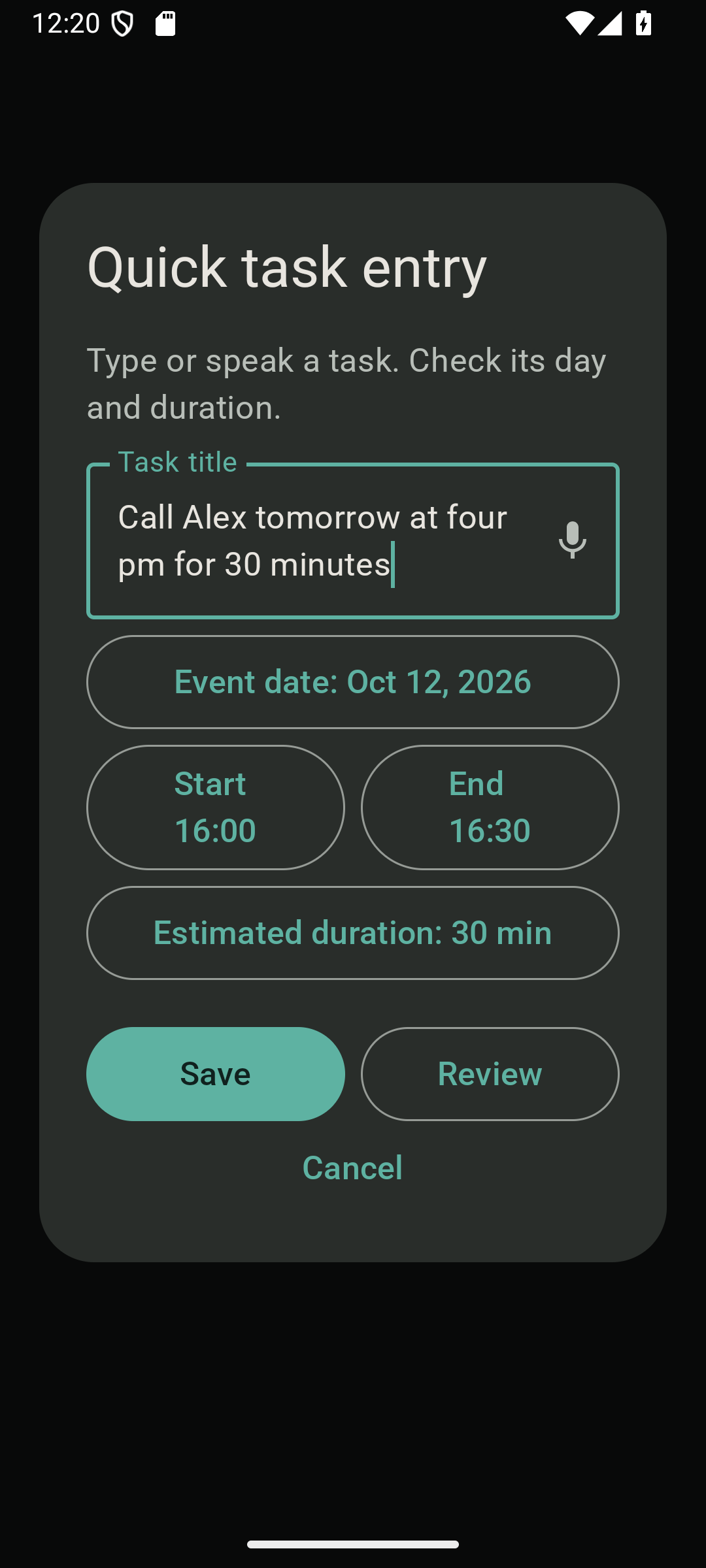
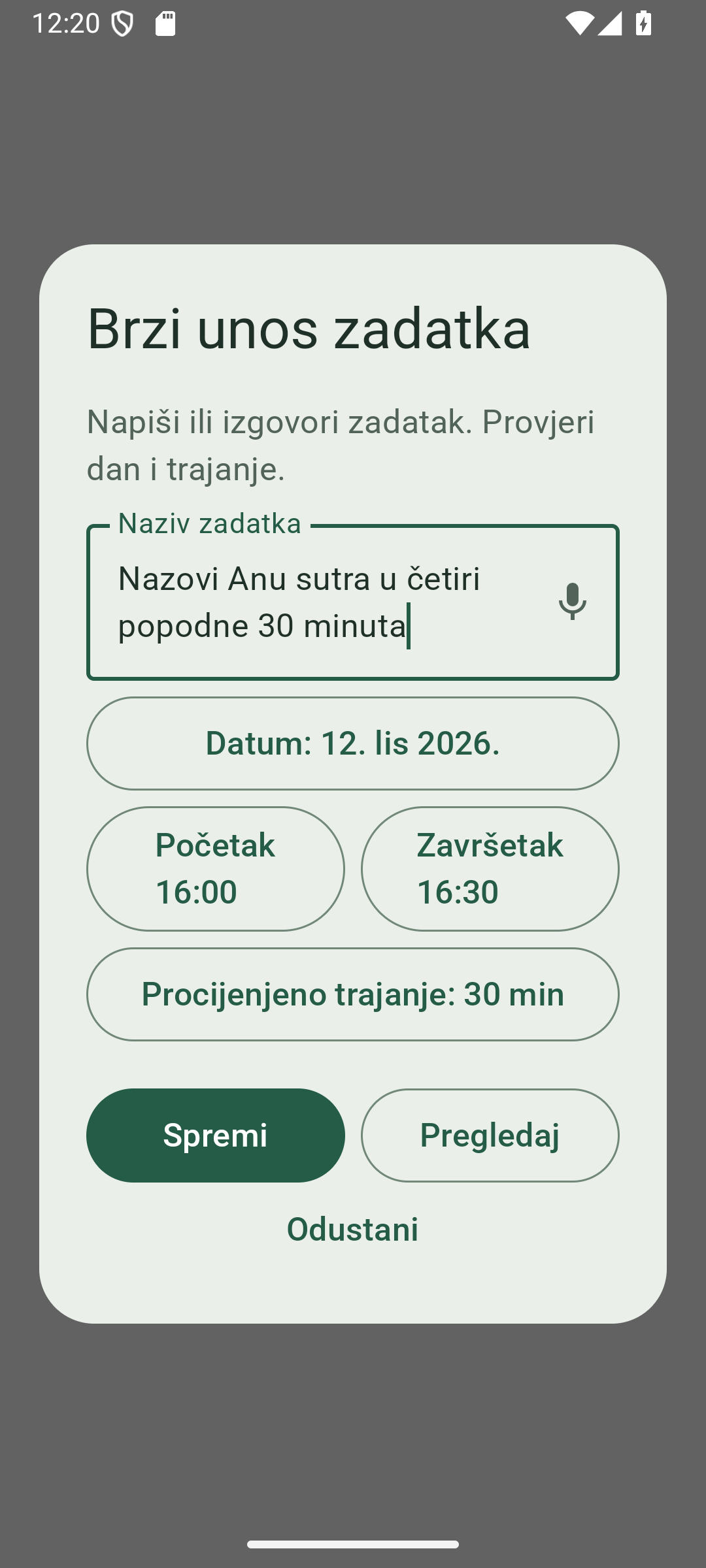
Where: Tasks → Quick task entry. This is the shorter capture path; Add task still opens the complete form.
- Type or speak the task.
- Check its day and estimated duration. If you did not provide a day, it defaults to today.
- If a start time was recognized, check/correct the timed schedule. Without a recognized time, the task stays untimed and does not take a free slot.
- Save creates the task and returns you to the relevant task list.
- Review opens the full form with the recognized and manually corrected values, without saving first. Cancel closes it.
Examples: “Buy groceries tomorrow” creates an untimed task for tomorrow; “Call Alex tomorrow at 16:00 for 20 minutes” supplies a timed task. Verify the actual recognized values before saving.
12. Timeline: rearrange a draft, save once
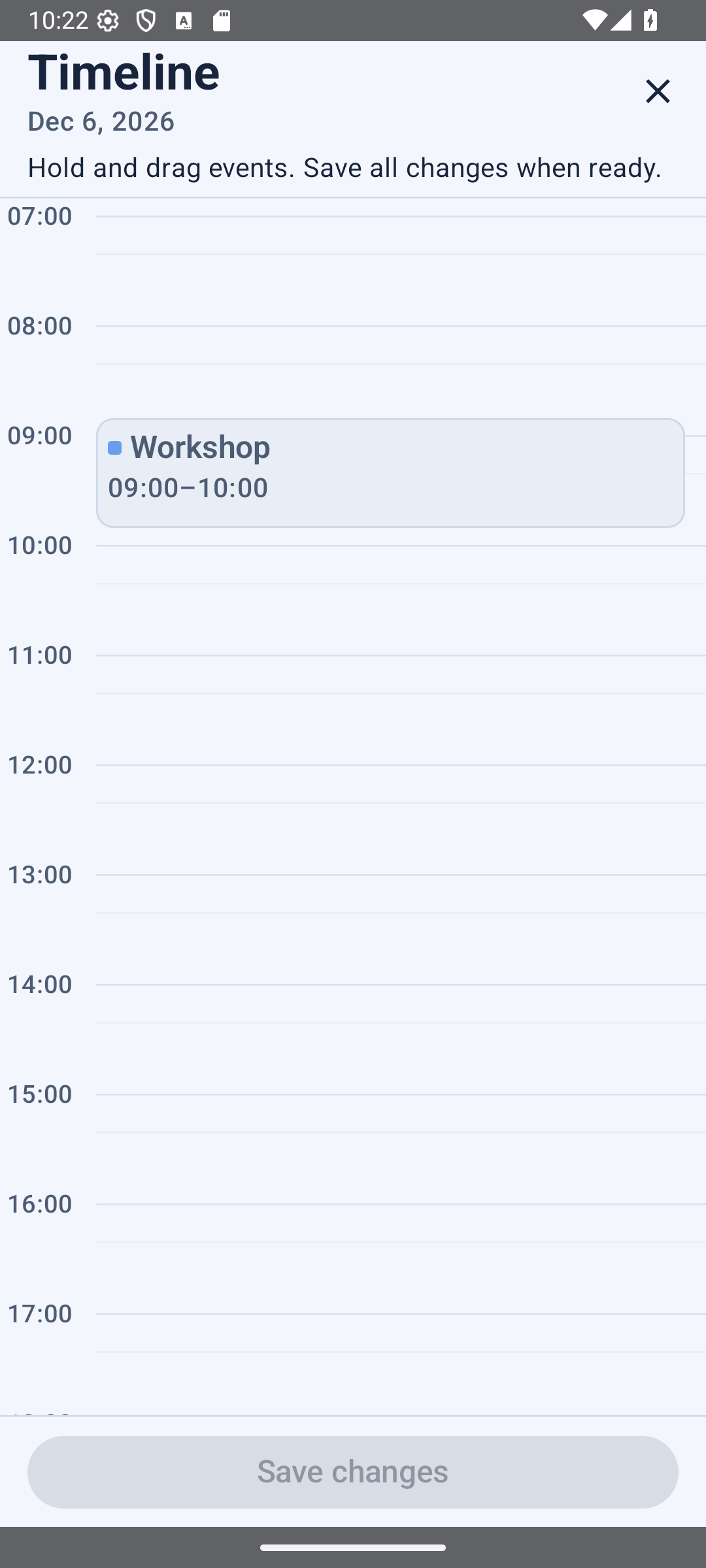
Where: Today → Schedule tools → Timeline. Use it when you want direct control over the positions of eligible events.
- Open Timeline and hold the flexible event you want to move.
- Drag it to a new start time. Its duration stays the same.
- Move other events only if you want to; they do not move automatically with their neighbour.
- As you approach an edge, the time view scrolls progressively. Overlapping events are shown side by side.
- Review the whole draft and use the final save once. Leaving/discarding the draft does not apply every individual drag.
Fixed, repeating, read-only, protected and overnight events remain locked. A tap must not reorder other events. A saved change is checked before committing; a safe undo may be available afterwards.
TalkBack: accessible actions offer five minutes earlier/later and an exact start-time input. They do not add visible buttons or change the standard drag interaction.
Example: move a flexible 14:00–15:00 call to 15:30–16:30. Your 17:00 dinner stays where it was unless you move it yourself.
13. Conflicts, transition time and Save my day
A red time-conflict card means events overlap. A gap warning means they are too close for the configured transition time. An adjacent pair can therefore trigger a gap warning even without an overlap.
- Open the warning or the relevant Assistant tool.
- Inspect which flexible, writable event may be moved and how much transition time you need.
- Choose one offered solution and review the before/after times.
- Apply only when the proposal is right. Use Keep schedule if you do not want a change.
Fixed and protected events are not silently moved. If no valid solution is available, edit your plan manually or use Timeline for eligible events.
Save my day / Day Rescue: previews a proposed adjustment when your day slips. Free includes three uses per month; Pro is unlimited. This allowance is separate from activity measurements and Arrange a meeting. Always review the proposed changes instead of treating the tool as an automatic rearranger.
14. Assistant: find the right tool
Assistant opens with Preparation and templates, Schedule and tasks, then History and contacts. Tap a group to reveal its tools; only one group is open. Timeline stays below the groups. Review options shows relevant suggestions. Opening a tool changes no events.
15. Event readiness, preparation and travel
Contact, location and travel contains your contact, personal note, destination and arrival planning. Preparation, Travel and Recovery use quick durations or hour/minute wheels; each has its own alarm switch. Task estimated duration uses the same picker. Buffers do not move the event itself.
16. History and contacts: find what you saved
- Open Assistant → History and contacts.
- Search with a few distinctive words from the event title, contact or note.
- Open a result to see the actual saved entry.
- Select a linked person to inspect their last and next associated plan within the tool's available range.
Example: search “Lunch Ana” rather than expecting a general chatbot to understand any calendar question. This is a search over available calendar data, not an unrestricted AI assistant. Private calendars of other shared members are never searched.
Results depend on visible calendars and loaded coverage. Remote shared history outside the active window may require loading the relevant period. No result does not prove that an unavailable calendar has no matching event.
Event templates
Open Assistant → Preparation and templates → Event template → New template. Fill in the normal event fields; the event title is the template name. Save template stores only the setup: it creates no calendar event and schedules no alarm.
Choose a saved title from the dropdown. Review its date and start/end; the saved time is suggested and can be changed. Add event creates one independent event. Add another event prepares the next copy. Editing a copy does not update the saved template.
The template retains entered settings, checklists and document references. A new copy starts with unchecked steps and no measurement history. Review event details changes only the prepared copy; Edit template changes the reusable setup. Deleting a template does not delete previously added events or original files.
Select from contacts to link a person. Before using the template, Rhythm checks their current name and contact details; your personal note stays unchanged. Manually typed names are not automatically linked. After restoring on another phone, choose/verify the contact again; names alone are not proof of identity.
If a contact or document is unavailable, review the warning. Update opens the full form; continuing without missing data affects only the new copy. Denied permission is not a deleted contact: keeping saved details requires your explicit choice. Do not delete the template just to resolve a temporary access problem.
Templates stay on this phone, not in shared calendars or automatic cloud sync. Include them in manual encrypted backup; include documents to carry file contents. There is no fixed template-count quota, but phone storage and backup safety limits apply. A saved travel estimate is not automatically recalculated.
Deadlines and renewals
Open Assistant → Preparation and templates → Deadlines and renewals. Filter by category, scroll to earlier or later dates, or use Today. Add deadline opens a short form: title, category and date. All-day starts on; turn it off for start/end clocks. Reminders start off for a new entry and show their selected date/time when enabled.
Plan renewal adds another real event, not a move or a completion. For Passport on October 19, 2030, choose 2035 to keep both dates. February 29 requires a valid leap year or another explicitly chosen day. The pencil opens the full editor. Trash confirms and deletes only the named date; Undo is available while safe. Custom category deletion keeps the events under No category.
Earlier plans and history keeps older action plans, drafts and completed renewals. They are not new renewal dates and are not automatically published. A pending new draft can be resumed or explicitly discarded. Contacts and documents are checked before copying; review unavailable data. These personal links stay on this phone, not in automatic cloud sync or shared calendars. Include them and document contents in manual encrypted backup.
Categories and Insights
In every Calendar view, use the small filter icon beside Search. Choose All, No category, Work, Personal, Family or your own category. The active filter limits what you see; it does not delete events. Return to All when something seems missing.
Category is in the event’s Notes and documents. Create and name your own categories. Before deleting a used category, confirm the warning; its events become No category, not deleted events. Categories are personal and can sync across your own devices without reorganizing other members’ calendars.
Open Assistant → Insights. Choose a week and one of five groups: Overview, Categories, Tasks, Measurements or Schedule. Only the selected group expands. Read the explanation and practical next step; incomplete history or unloaded calendars limit the results. Opening Insights does not change your schedule.
Insights summarizes available planning data. Read the explanation and suggested next action, then decide whether to open the associated event, task or tool. It does not rearrange your calendar just because a chart or recommendation is shown.
A small amount of history, hidden calendars or incomplete shared coverage limits the result. Treat a suggestion as information about your available records, not an objective assessment of your productivity. Personal duration estimates need explicit measurements, as explained below.
19. Personal duration estimate
Learn how long a recurring activity really takes using your own manual measurements. This is available in Free and Pro and does not consume a Save my day use.
- Create or edit a repeating event. Below recurrence, enable activity measurement.
- On an eligible event card in Today or Calendar, tap Start when you actually begin and Finish when you actually stop.
- Watch the valid-measurement progress, such as 1/5 or 4/5. The recurring activity needs at least five valid completed measurements.
- When enough data is available, inspect the proposed duration and the future occurrence from which it would apply.
- Choose Apply estimate or Keep plan. Nothing changes automatically after measurement five.
Buttons are conditional: an event scheduled for a future day is not an active measurement yet. Make sure you are viewing an eligible occurrence and have opted in. Simply saving a repeating event is not a completed measurement.
The estimate uses a median with unsuitable samples excluded. In the first implementation, a longer duration can be proposed; a shorter duration is not automatically suggested. For example, five valid measurements of 50, 55, 60, 55 and 50 minutes indicate about 55 minutes.
Direct application is for eligible flexible repeating activities in your own Rhythm calendar. It changes future duration from the shown boundary; starts and past occurrences stay unchanged. Fixed, protected, all-day, overnight, device-calendar and shared entries can have restrictions or informational-only results. Other events do not move to make room. Review any conflict warning before accepting.
Forgot Start/Finish? After the occurrence ends, use manual time entry on its card and select actual start/end; the date stays tied to that occurrence. Review and save. Valid manual measurements can count toward the five measurements, just like completed Start/Finish records; no duration is guessed automatically.
20. Connect calendars already on your phone
- Open Settings → Calendars → Device calendars.
- Grant calendar permission if asked.
- Expand the list and use each calendar's on/off switch to choose what is visible. Account details help distinguish identical names.
- Turn unwanted calendars off. They remain in the list so you can enable them later, but their events are not shown.
- Choose a writable default calendar for new events if you want them stored with that provider.
Google, Outlook and other provider calendars must be exposed through Android's calendar provider on the phone. Rhythm sign-in is not a general “connect every Google/Outlook account” switch. Provider synchronization is controlled by the provider and Android account settings.
Google/Outlook entries need a writable calendar exposed through Android. Use the pencil for supported single-event changes. For supported recurring entries, choose Only this event or Entire series and check the scope. Existing exceptions and reminders are preserved; this does not add This and following events.
Read-only, unsupported or unsafe provider changes open the source calendar instead. Change the repeat rule there when Rhythm cannot safely edit it. After an uncertain save, inspect the source calendar before retrying; do not create another copy blindly. Connecting calendars never shares them with other Rhythm users.
21. Optional Rhythm cloud sync
- Open Settings → Cloud sync.
- Sign in with the Google account you want to use for Rhythm.
- Inspect the sync status. Use the same account on another device when you want your own synchronized Rhythm data.
Cloud sync carries supported Rhythm-owned events, tasks, calendar lists and preferences. Provider-calendar entries and attached file contents are not duplicated into Rhythm cloud storage. Local drafts and local backup files are not a substitute for a successful online synchronization.
Internet is required to synchronize, not to read and edit supported local data. Wait for a successful status before assuming another device has received your changes. If you need to disconnect/delete the cloud copy, follow the deletion guide.
Signing into Google for Rhythm is separate from Google Play's purchase account and separate from the Android calendar accounts supplying device calendars.
Templates stay on this phone, not in shared calendars or automatic cloud sync. Include them in manual encrypted backup; include documents to carry file contents. There is no fixed template-count quota, but phone storage and backup safety limits apply. A saved travel estimate is not automatically recalculated.
23. Arrange a meeting Pro
In the chosen calendar, open Arrange a meeting → New proposal. Enter a title and use one oval control for date, start and end. Add up to two more options (1–3 total); the bin removes an option. The editable response deadline defaults to one minute before the earliest option. Publishing creates a proposal, not the final event.
Participants switch on every option that suits them: one, several or all; they can also reply none works. No reply is not acceptance. Expand an option’s member list to see named replies and who has not replied. The organizer reviews and confirms one final option, creating one shared event for everyone.
After confirmation, each person can set their own event alarm. Activity sounds are separate: Settings → Schedule and reminders. Allow Android notifications for background/locked-screen delivery. A dismissed information card does not resolve a pending action; its badge remains until dealt with. Updates refresh automatically; Refresh is only a fallback.
Changing the offered times invalidates previous responses to the older proposal version. Members need to reply to the revised options. Expiry does not create an event automatically. Closed/cancelled/expired proposals and responses are removed after their 30-day retention period; the final event is not deleted by that cleanup.
24. Appearance, typography and working hours
Standard adds vivid green, orange, blue and red. Code has black industrial panels with cyan or orange accents and a short selection transition, disabled when system animations are off. Font remains independent. Choose the static widget theme in Settings → Widget. Free/Pro access is unchanged.
For a new timed event or task on today’s date, the suggested start is the next whole hour, even at exactly 10:00 → 11:00. Other dates use your working-day start, initially 08:00. Review and change it before saving; untimed tasks remain untimed.
Calendar and working day
Set the start/end of your working day and the first weekday here. These settings guide planning and free-slot calculations. All-day events retain their original dates; the working-day range is not a provider-calendar date rewrite.
Schedule and reminders
Choose planning time range, minimum spacing and default reminders. A minimum gap can warn about consecutive events even when their times do not overlap.
25. Home-screen widget
- Use Android's widget picker to add the Rhythm widget to your home screen.
- Resize it to display more rows.
- Open Settings → Widget. Widget settings are no longer duplicated in Assistant.
- Choose Compact or Extended and the available appearance. Extended lets you choose supported details such as contact name, phone, email and location.
The widget shows events and unfinished tasks from visible calendars for the next seven days, with distinct item labels. Its row count depends on height and chosen details. Hidden calendars and deleted entries are excluded.
Consider privacy before showing contact or location details on a home screen that other people may see. Some customization is Pro; basic widget functionality remains available.
Standard and Nocturne Glass are free. Rhythm Ivory, Cobalt, Sage, Graphite and Code require Pro. Theme and font are chosen independently; Oxanium is an optional font. Code offers green/orange and Graphite a white accent directly on the theme card. Widget themes/colors are selected in Settings → Widget.
26. Encrypted backup and restore
- Open Settings → Backup and restore → Create backup.
- Choose whether to include accessible attached document copies. Skipped/unavailable documents are reported.
- Set a passphrase and save the .rhythmbackup file somewhere you control. Keep the passphrase separately and safely.
- For restoration, choose Restore backup, select the file and enter its passphrase.
- Review validation and choose Merge or Replace.
Merge keeps current settings and retains conflicting imported records for review. Replace changes Rhythm-owned local data, with an internal safety snapshot first; it does not delete Android/Google provider events. Review the destructive confirmation before choosing Replace.
Rhythm keeps three private automatic rollback copies on the device and offers the previous-local-copy restore where available. Local rollback copies can be lost if you clear/uninstall the app; keep an independent manual backup.
Restoring a backup does not unlock Pro: Google Play remains the source of purchase entitlement. Document names without included files do not restore the file contents. This is a local backup operation, not an upload service.
Templates stay on this phone, not in shared calendars or automatic cloud sync. Include them in manual encrypted backup; include documents to carry file contents. There is no fixed template-count quota, but phone storage and backup safety limits apply. A saved travel estimate is not automatically recalculated.
27. Free, Pro and purchases
Free includes the core calendar views, ordinary event/task entry and basic widget. Save my day has three monthly uses; Pro removes that limit. Shared Rhythms, Arrange a meeting, Quick task entry and premium skins require Pro. Activity measurement is available in both.
Check the purchase screen in your installed app for the exact current offers, prices and travel/customization entitlements. Beta access can differ from a purchased subscription. Future features listed in an offer are not instructions for a currently available tool.
Google Play handles billing, renewals, cancellation and payment methods. Use the purchase/restore controls offered in Settings if a valid purchase is not recognized. Use the appropriate Play account and contact support with the app version and product details if necessary; never send full card information.
28. When something does not work
A tool is missing or disabled
Check that the item is saved and eligible, that its calendar is visible/writable, that required history exists, and that online data has finished loading. Paid tools also need Pro. A fixed, protected or provider-owned recurring event may intentionally block changes.
Speech gives the wrong time
First inspect the actual transcript. If “pm” or “afternoon” disappeared, choose the quick AM/PM alternative or correct start/end directly. If needed, use a numeric 24-hour time such as 15:30. Verify the date too. Dictation quality depends on Android's speech service and language.
A shared change has not appeared
All users should update first, be signed in, have the required Pro access and approved membership, and be online. Inspect sync/error/loading status and calendar visibility. Open the relevant period if the event is outside the default shared loading window. Do not repeatedly create duplicate events to compensate for a network delay.
The alarm did not arrive
Check that you saved the event/task, the date/time and recurrence scope are correct, and the reminder is enabled. Inspect Android notification, alarm and battery permissions. Test a near-future reminder while the device is unlocked before diagnosing lock-screen restrictions.
I cannot edit a Google/Outlook series
Google/Outlook entries need a writable calendar exposed through Android. Use the pencil for supported single-event changes. For supported recurring entries, choose Only this event or Entire series and check the scope. Existing exceptions and reminders are preserved; this does not add This and following events.
Read-only, unsupported or unsafe provider changes open the source calendar instead. Change the repeat rule there when Rhythm cannot safely edit it. After an uncertain save, inspect the source calendar before retrying; do not create another copy blindly. Connecting calendars never shares them with other Rhythm users.
Measurements have no recommendation
Enable measurement for the activity and complete at least five valid Start/Finish records. Future-day events, unfinished measurements or filtered samples may not count. If the planned duration already fits, Rhythm need not propose a change.
I want to delete data or contact support
Use the cloud deletion guide for account/cloud data. For support, send your phone model, Android version, Rhythm version, precise steps and expected/actual behavior to support@rhythmcalendar.com. Redact private event/contact details from screenshots unless strictly necessary.
29. Find a missing event or task
- Check the selected date and year. Return to Today or open Calendar and select the expected date. A task without a time is not a timed appointment.
- Open Settings → Calendars and check that the relevant calendar is switched on. Device calendars, local Rhythm calendars and shared Rhythms are different sources.
- For a device calendar, check Android calendar permission and the source app's account synchronization. For a shared Rhythm, check sign-in, membership, internet and loading status.
- If the date is outside the usual shared loading range, open that period and wait for loading to finish. Older data is not deleted just because it is outside the usual range.
- In Tasks, try Today, Upcoming, Unfinished and Completed. Search saved event text through Assistant → History and contacts.
- If you used Review during quick entry, complete the full form with Save. Review alone did not create the item.
Do not clear app data, uninstall, replace a backup or repeatedly create the item while investigating. These actions can lose local information or create duplicates. Make a manual backup first if a potentially destructive step is necessary.
31. Get help and send a useful support request
Use the topic list to open the relevant instructions. You can send someone a direct link to a section, for example Reminders or Arrange a meeting. Choose the reader's language from the language menu. When reporting a problem, include the section you followed and the exact step where the result differed.
- Check for an available app update on Google Play and note your installed Rhythm version. For shared features, check each participant's version.
- Write your phone model, Android version, app language and whether you use Free or Pro. State whether the item belongs to Rhythm, a device calendar or a shared Rhythm.
- Give the shortest steps that reproduce the issue, the expected result, the actual result and any exact error text. For a reminder, include the date/time, time zone and reminder scope.
- If helpful, add a screenshot with private names, contacts, addresses and invitation codes covered. For voice input, include the text left in the field, not a private audio recording.
- Email support@rhythmcalendar.com. Never send passwords, backup passphrases, full payment-card details or unrelated private documents.
For purchase problems, use the same Google Play purchase account and the available restore controls; billing cancellation is managed in Google Play. For deletion of cloud data, follow the deletion instructions. Some linked policy pages are in English. Keep local data intact while support investigates; do not uninstall unless you understand the backup and recovery consequences.
Event and task controls
Today → Quick event entry opens the short form. The bottom-right + Add event in Today/Calendar opens the full form; + Add task opens the task form. The next event can be tomorrow: check its displayed date.
Use the pencil to edit a saved event or task; touching the remaining card area does not open editing. To delete a task, open its editor and use the bin left of Discard, then confirm. Read-only items do not gain editing rights.
In Notes and documents, the order is Category → Checklist → Note → Add document. Timeline is the last item in this section when available. Its move/save behavior is unchanged. Hide title in notifications changes reminder text, not what shared-calendar members see.
Use Show/Hide checklist on event and task cards in Today and Calendar, and on Tasks. Tap a round marker to check a step when editing is allowed. In the checklist input, the New line icon below the microphone inserts the next item after dictation.
For a new timed event or task on today’s date, the suggested start is the next whole hour, even at exactly 10:00 → 11:00. Other dates use your working-day start, initially 08:00. Review and change it before saving; untimed tasks remain untimed.
Contact, location and travel contains your contact, personal note, destination and arrival planning. Preparation, Travel and Recovery use quick durations or hour/minute wheels; each has its own alarm switch. Task estimated duration uses the same picker. Buffers do not move the event itself.